

- Develop an idea before you decide what to build, or choose between several directions.
- Understand your workspace: what each project does, what changed recently, what is worth improving, and where your plan and credits stand.
- Check how an app is doing: website traffic by channel, the data in its Cloud database, and, if you manage billing, its credit usage.
- Work across projects, comparing several apps or coordinating changes across them.
- Get work done in your connected tools: summarize your inbox, draft a Notion page, or open a Linear issue.
- Use an app you built: once the app is connected as a tool, ask it questions or update its records, such as finding late orders and marking them shipped.
- Create content: a brief, an analysis, a table, an image, or a short video.
- Prepare a report from your data: attach a spreadsheet or export and get a summary, a table, or a chart.
- Research current information on the web, with sources.
Chat pricing and daily chat allowance
Chat usage follows its own pricing model, including a per-message price and a daily chat allowance. A chat message is priced on the work Lovable does to answer it, typically a fraction of a credit. Free, Pro, and Business workspaces include a daily chat allowance that covers chat messages first. The allowance belongs to the workspace, so everyone’s chat messages draw on the same daily pool. It resets every day at 00:00 UTC and does not roll over. When the day’s allowance is used up, chat messages keep the same per-message price and draw on your daily build credits, then your general credits. Enterprise plans do not include a daily chat allowance. See Chat costs for the full rules. In a chat, the daily chat allowance covers conversation, research, connector queries, and the text files Lovable creates. Work the chat sends to a project, and images and videos Lovable generates in a chat, use build credits instead. See Send work to a project and Create files in a chat.Start a chat
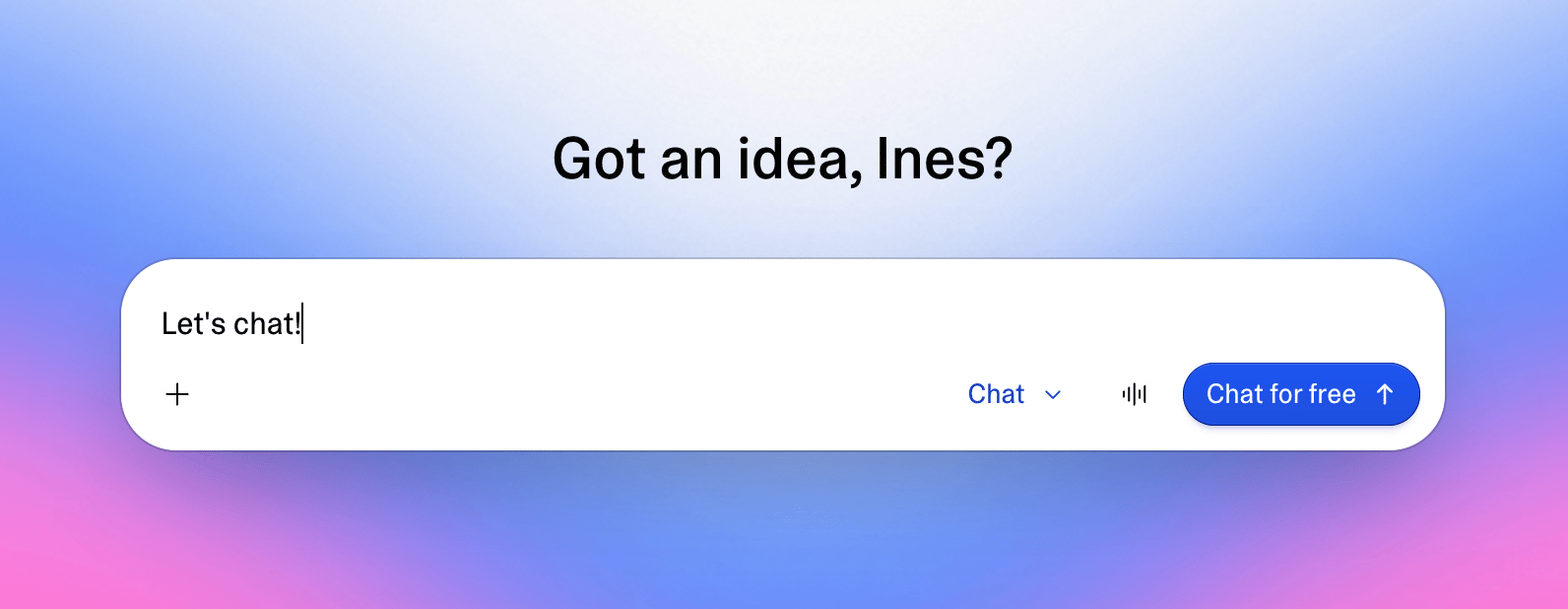
Each of the following starts a personal conversation that appears on the Chats page. Only you can open it, even if a teammate has its link.- Dashboard: The dashboard prompt box opens in Build the first time, then remembers the mode you last used. Select Chat in the mode picker beside it. While your daily chat allowance lasts, the send button reads Chat for free.
- Chats: Select Chats in the sidebar, then New chat. Chats appears in the sidebar after you start your first chat. You can also open the list at lovable.dev/chats.
- Project card: Open a project’s ⋯ menu on the dashboard, then select Chat about this project. The prompt box opens in Chat with the project attached and a suggested message that you can edit or send.
- Mobile app: Open the Chats tab in the Lovable mobile app and start a new chat.
Ways to chat
A chat is one continuous conversation however you use it. Typed messages, dictated messages, and voice transcripts stay together in the same history. During a voice conversation, the call controls take the place of the prompt box, so you cannot type or dictate in that chat until the call ends.- Type a message in the prompt box and send it.
- Dictate: Select the microphone button, Transcribe, or press Option+V on macOS or Alt+V on Windows and Linux. Lovable transcribes your speech into the prompt box so you can review and edit before sending.
- Talk live: Select the waveform button, Start voice conversation. In a chat, it appears in place of the send button while the prompt box is empty. On the dashboard, it appears in place of the dictation button when Chat is selected. Lovable listens and answers aloud. See Have a live voice conversation.
Have a live voice conversation
A voice conversation is a live, two-way call inside a chat. It uses the same context, connected tools, permissions, and project handoffs as typed messages.Explore and create in a chat
Write to Lovable in plain language and describe the outcome you want, whether you type, dictate, or talk. Lovable uses your conversation and any projects, files, or tools you add as context, then answers in the chat, creates a file, or proposes sending work to a project. For example, ask which of your projects changed this week, or ask for a summary of a customer’s recent emails before you reply.Add context
Select + (Chat actions) beside the prompt box to attach context to the message you are writing, or type@ for the same list without Attach files:
- Projects adds workspace projects, up to 10 in one message.
- Connectors adds tools such as Notion, Linear, Slack, Gmail, GitHub, or Granola.
- Your files adds a file Lovable created in any of your chats, up to 10 in one message. Files you uploaded are not listed here.
- Attach files uploads files from your device, such as documents, spreadsheets, screenshots, images, presentations, or audio. Uploaded files belong to the message you send them with and do not appear in the Context panel.
Use connected tools
Lovable reads from your connected tools without asking, and asks for your approval in the chat before it creates, sends, or changes anything through a tool. For tools from an MCP server, Lovable asks before every use unless the server marks the tool as read-only. Connections follow their sharing settings. A connection you create from a chat with your own account starts as Private, which is sufficient for your own chats. A Managed by Lovable connection you create from a chat is shared with the workspace. In a chat, Lovable uses the connections you have access to, with one exception: it does not use another member’s connection to a personal account, such as their Gmail or Linear, even when they shared it with you. See Can I use a connection a teammate shared with me? You can connect the tools your workspace makes available. Workspace admins set which connectors members can connect, and those admin controls apply in Chats as they do in projects. Published Lovable apps with an agent integration can also become tools. Lovable charges their Cloud, AI, and third-party usage to the workspace that owns the app. See Connectors for setup, supported tools, and MCP servers.Create files in a chat
Ask for the file you want, in plain language: a brief, an analysis, a table, an image, or a short video. What Lovable does depends on the format:- Text-based files: Lovable creates documents, analyses, and tables in the chat as text-based files such as Markdown, CSV, or JSON. The message that produces them is chat usage, covered first by the daily chat allowance.
- Images and short videos: Lovable also creates these in the chat, but each generation uses build credits. Lovable asks for confirmation first, with a Generate this image?, Edit this image?, or Generate this video? card, and you can approve once or save separate permissions for image generation, image editing, and video generation. The charge shows as Image generation or Video generation in Usage details.
- PDF files, slide decks, spreadsheets with formulas, Word documents, and web pages: These need a project. The chat cannot produce these formats itself, so Lovable creates or uses a project to generate the file. The project generates it as a build, which uses build credits, even though no app is built. The chat shows a card for the project, and the finished file opens beside the conversation, where you can preview and download it.
Send work to a project
A chat does not edit project code itself. When you clearly ask Lovable to build or change an app, it sends your request to a project, in your own words. The project does the work, records it in its own history, and reports back to the chat. Lovable does not send work when you only describe an idea or agree with a suggestion. The conversation is chat usage. After the handoff, the project’s work is build usage, priced as Build mode or Plan mode work.Approve the handoff
You can send work only to projects you can edit. When approval is required, Lovable shows a card that summarizes the work and notes that it uses build credits. For a new app, the Create a new project? card offers:- Always allow: Creates the project and lets Lovable create future projects from any chat without asking again.
- Allow once, in the card’s menu: Creates only this project.
- Always allow: Any project you can edit, from any of your chats.
- Always allow for this project: This project, from any of your chats.
- Allow in this chat: This project, in this chat only.
@. A project name typed in plain text does not count as an attachment, so the card still appears.
Follow the build
After the handoff, the chat shows Sent work to and the project’s name, or a card for the new project. The project’s preview opens beside the conversation when it is ready. If another project’s preview is already open when you send work to an existing project, that preview stays. The project builds while you continue chatting, and a follow-up from the chat sends it a new instruction. Questions, plan approvals, and credit check-ins from the project appear as cards in the chat, and Lovable reports the result when the build finishes. To follow the work in detail, open the project. To stop the build from the chat, open the project’s menu in the Context panel and select Stop Lovable. In the project chat, Lovable marks the request Sent from Chats. You see the name of the chat it came from. Collaborators see only that it came from Chats and cannot open the chat.Plan, test, or publish
You can also ask for a project action that is not a direct build:- Ask Lovable to plan the change in Plan mode when you want to review and approve the approach before implementation.
- Ask it to build in a draft when you want to test the change separately before accepting it into the project. You can also accept the draft from the chat.
- Ask it to publish a project. Publishing follows the same permissions and workspace policies as publishing from the project itself.
Manage context and files
Open the Context panel from the button in the upper-right corner of a chat. The Context panel groups what this chat can use:- Projects lists the projects you have referenced.
- Files lists files Lovable created in this chat and files you added from Your files.
Projects
The Projects list shows the projects you have referenced. Items remain available to later requests until you remove them. Select Add context in the panel to add an existing project, connector, or file from Your files without mentioning it in your message. When the panel already lists items, Add context is the + button at the top. Open the ⋯ menu beside a project to manage it:- Stop Lovable stops a build the chat started in that project. Shown only while the build is running.
- Open in new tab opens the project in the editor.
- New draft creates a draft of the project for work you want to test before accepting it. Available when you can edit the project.
- Reference in chat attaches the project to your next request.
- View drafts or Hide drafts shows or hides the project’s drafts in the panel. Shown when the project has drafts.
- Remove from context stops Lovable from using the project in later requests without changing the project.
Files
The Files list contains files Lovable created in this chat and files you added from Your files. Files generated through a project stay in that project and do not appear here. Select a file to preview it. Open its menu to:- Reference in chat to use it in your next request.
- Download it.
- Version history to open an earlier version.
- Remove from context to stop Lovable from using it in this chat. Lovable does not delete the file.
@, then select the file under Your files. To revise a file, ask Lovable in the chat, and it saves the revision as a new version.
For the formats a project can generate, such as PDF, Word, PowerPoint, and Excel files, and for the project’s own Files tab, see Generate files and analyze data.
Manage your chats
Every chat you start is listed in the sidebar and on the Chats page. This section covers how to see what a chat is costing, find and organize your chats, read their status, and use their menus.Track your allowance and usage
Lovable shows how much of the daily chat allowance is left in several places:-
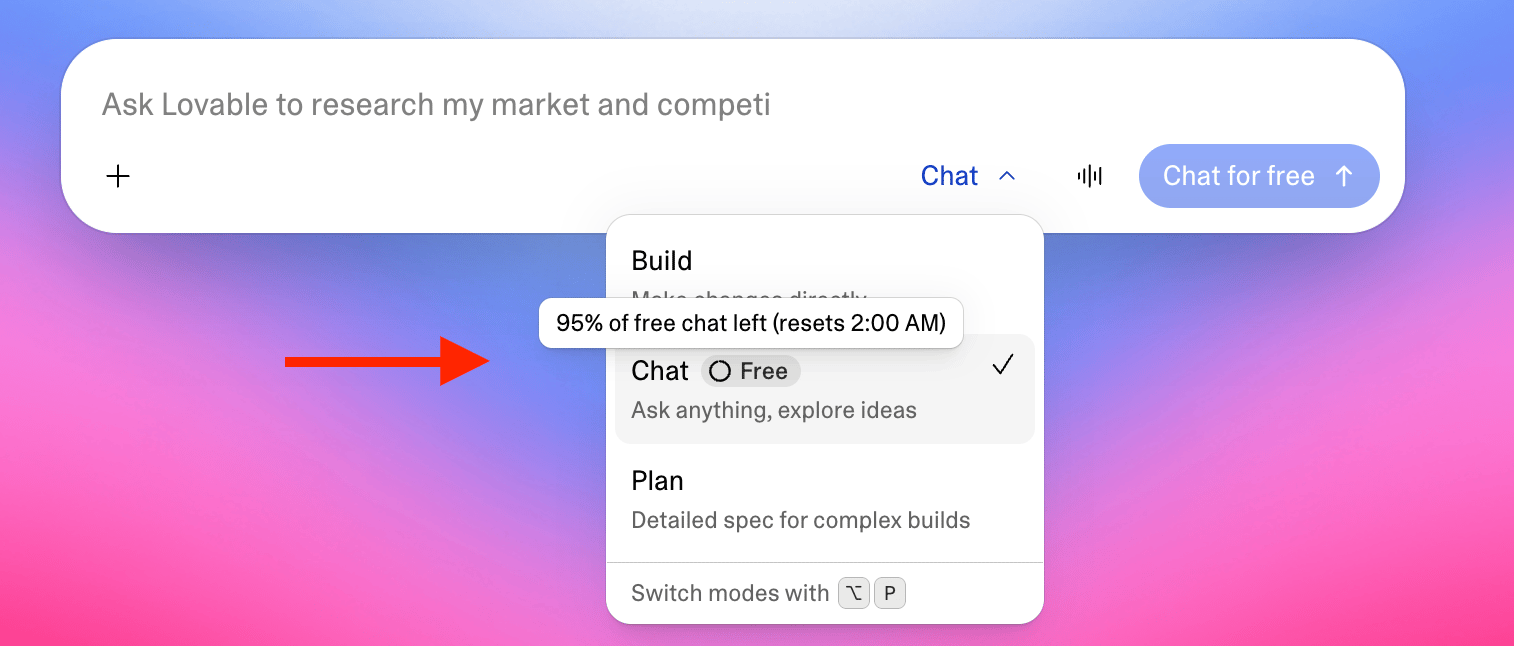
The Chat option in the mode picker shows a Free badge while the workspace has daily chat allowance remaining. The ring in the badge shows how much of today’s allowance is left and empties as you chat. Hold the pointer over the badge to read the percentage left and when it resets, for example 95% of free chat left (resets 2:00 AM), with the time shown in your local time zone.
-
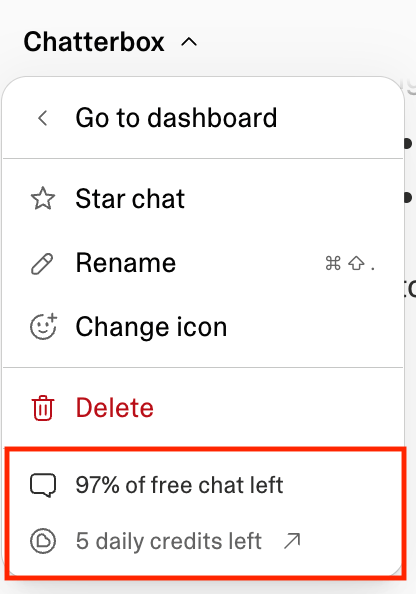
Inside a chat, select its title at the top. The bottom of the menu shows the allowance state: Chat for free before you use any of today’s allowance, then the percentage left, for example 97% of free chat left, and Using credits to chat after it runs out. The workspace’s remaining credits appear below, for example 5 daily credits left. If you have permission to view billing, select that line to open the usage breakdown.
-
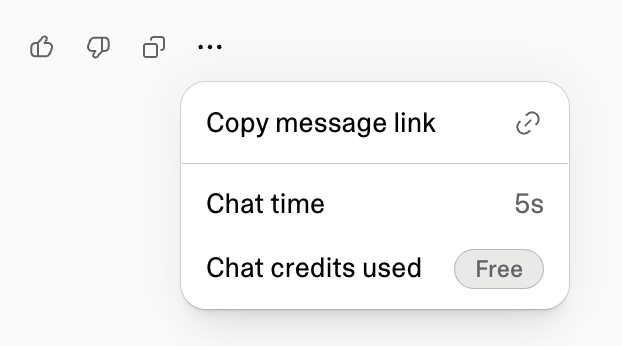
The More options menu on a Lovable reply shows Chat time and Chat credits used for the conversation. Chat credits used reads Free when the allowance covered the reply. When the reply also sent work to a project, Build time and Build credits used show the build’s cost separately, so you can see what the allowance covered and what used build credits.
- Workspace settings → Plans & credit usage shows the percentage of today’s allowance left in the Daily chat credits row.
- Workspace settings → Plans & credit usage → Usage details shows chat usage over time under Chat. Chat usage covered by the allowance or your daily build credits does not appear there. See Reading the chart.
Find and organize chats
Select Chats in the sidebar to see all your chats, starred chats first. Use Search chats… to find a chat by name, and the filter next to it to show All or Unread chats. Search matches chat names, not message text. Star a chat to keep it at the top of the list, rename it, or give it an icon, from either of the chat menus.Chat status
A dot on a chat’s row shows the chat’s state: at the right edge in the sidebar, and next to the title on the Chats page. In the sidebar, hold the pointer over the row to read the label.Chat menus
Open a chat’s ⋯ menu in the sidebar or on the Chats page, or select the chat’s title inside the chat, to manage it:- Star chat keeps the chat at the top of your list.
- Rename gives the chat a new name. Inside a chat, you can also press F2, or Cmd+Shift+. on macOS and Ctrl+Shift+. on Windows and Linux.
- Change icon gives the chat a different icon.
- Mark as unread shows the blue unread dot on the chat again. Available in the ⋯ menu only.
- Copy link copies the chat’s web address so you can open it on another device or save it in your notes. The link opens only for you and does not give a teammate access to the chat. Available in the ⋯ menu only.
- Go to dashboard leaves the chat and opens the dashboard. Available in the title menu only.
- Delete removes the chat after you confirm in the Delete chat dialog.
Limitations
These limits apply whether you type, dictate, or talk.- A typed message can contain up to 50,000 characters. Any message can reference up to 10 projects and 10 files.
- In very long conversations, Lovable can lose access to the oldest context. Keep important source material in workspace knowledge or in a file.
- A chat cannot directly edit project files, revert a project, or apply visual edits.
- Workspace skills and goals (
/goal) are not available in Chats. Open a project for those workflows. - Voice conversations need microphone permission, a stable internet connection, and Chrome, Safari, or Edge. They are unreliable in Firefox.
- Each person can use up to 60 minutes of voice per day, and the limit resets at 00:00 UTC. In a browser, you can have one voice conversation at a time.
- Voice conversations are available in Chats. The project chat supports dictation instead.
- Voice conversations and dictation are not available in workspaces that require all AI processing to remain in the European Union.
FAQ
Common questions about working in Chats.What is the difference between Chats and Chat mode?
What is the difference between Chats and Chat mode?
How many messages does the daily chat allowance cover?
How many messages does the daily chat allowance cover?
Can my teammates see or open my chats?
Can my teammates see or open my chats?
Is what I write in a chat used to train AI models?
Is what I write in a chat used to train AI models?
Can I use Chats on my phone?
Can I use Chats on my phone?
Why did my build credits decrease while I was chatting?
Why did my build credits decrease while I was chatting?
Why does Lovable not follow something I said in another chat?
Why does Lovable not follow something I said in another chat?
Troubleshooting
If Lovable shows one of these messages in a chat, this is what it means and what to do.Chat credit limit reached
Chat credit limit reached
Couldn't send the work to the project
Couldn't send the work to the project
This chat has been deleted
This chat has been deleted
This chat is in another workspace
This chat is in another workspace
Microphone access is needed for voice conversations. Enable it in your device settings.
Microphone access is needed for voice conversations. Enable it in your device settings.
A voice conversation is already running. End it before starting another.
A voice conversation is already running. End it before starting another.
You've reached your voice time limit. It resets at [time]. You can keep chatting by typing below.
You've reached your voice time limit. It resets at [time]. You can keep chatting by typing below.
Voice conversation dropped. Resume it, or continue by typing below.
Voice conversation dropped. Resume it, or continue by typing below.